AI patch management that identifies and remediates patch failures
NetZen patches Windows, macOS and Linux for every client your MSP supports, on your schedule. When an update fails, the AI investigates that device, puts what it found on the ticket and proposes the fix. After updates install, it checks your pilot devices before the rest follow. You approve every fix.
What is AI patch management?
Automated patch management installs updates on a schedule. AI patch management also works out what happened next: why an install failed on one device, and whether the updates that did install left your pilot devices working.
From failed status to investigation. Many tools report a failed status and an error code and leave the research to a technician. NetZen brings the device findings and the proposed next step onto the failure ticket.
Where NetZen’s AI starts. When patching raises a failure ticket, the investigation starts under your diagnostics settings, without anyone having to ask. It ends with a fix you approve and a check that it worked, or with a technician taking over with the findings.
Why it matters to an MSP. Failed patches are the work that eats a technician’s morning across dozens of clients. When each one arrives with the findings and a proposed next step, the technician decides instead of researching.
Why did the Windows update fail? The AI finds out on the device
A failed update opens one ticket per client and update, and the AI investigates the device on it. It writes down what is established, what is only likely and what it could not check, on Windows, macOS and Linux. Your approver says yes to the fix, then the AI checks whether the update installed. When it cannot find the cause or confirm the fix, a technician gets the ticket with the findings.
- A full system drive
It proposes clearing temporary files, then retries the update.
- A restart that never happened
It proposes the restart in your window, or tells the user in chat when it will happen.
- A broken update service
It proposes the repair from the automations you approved for that client.
- A wrong clock
It proposes correcting the time, which also clears the certificate errors behind many failed downloads.
- No route to the update servers
It shows where the connection stops and hands the ticket to a technician with its findings.
Can AI detect problems after a bad Windows update?
A few pilot devices per client install first. Afterwards the AI checks them for what changed: services that stopped, new errors, a network that no longer answers.
Held before it spreads. If a pilot fails or does not come back after its restart, NetZen holds that update for every other device and opens a ticket.
A person decides. When the AI finds a problem, the ticket shows the before and after and proposes the hold. A technician decides, and releases the update when it is safe.
Pilots you choose. Choose pilots that represent each client’s important devices and applications. What the AI finds on them informs the decision to roll the update out wider.
Something broke after patching. Was it the update?
Users rarely say an update broke something. They say Outlook will not open or the printer stopped. The AI reads that ticket with the device’s patch history beside it.
Recent installs in view. The AI knows what installed on that device in the last three days and considers those updates alongside the symptoms the user reported.
One update, many tickets. When the same update turns up behind tickets from several devices, the AI proposes holding it for the rest of your clients.
Which updates should you install first?
The ones attackers are already using, then security fixes, then everything else. NetZen sorts every update into that order on every platform, and your policy sets the delay for each.
| Update | When it installs |
|---|---|
| Fixes for actively exploited flaws | In the next window, skipping any delay (CISA’s Known Exploited Vulnerabilities list) |
| Security and critical updates | After the few days’ delay you set, pilots first |
| Other OS updates and drivers | After a longer delay, or only when you approve them |
| Third-party apps | With the OS updates, except the apps you exclude |
| Feature upgrades and new macOS versions | Reported, never installed |
Why wait at all. A short delay lets the wider world find a bad update first. Your pilots find the problems that are specific to your clients.
Servers apart. Servers have their own policy, window and restart rule, so they restart on their own schedule and not with the laptops.
Automated patch management for Windows, Mac and Linux, across every client
NetZen keeps Windows, macOS and Linux devices current for every client from one place, with the same rules on every platform.
| Platform | What NetZen keeps up to date |
|---|---|
| Windows | Windows and Microsoft updates, plus apps installed for all users |
| macOS | Apple updates and supported Mac apps |
| Linux | Distribution packages, with security updates and their CVEs |
Laptops that were off. Downloads start before the window, and devices that were off can catch up within a day when your policy allows.
Left alone where it should be. Devices whose updates WSUS manages are shown as managed elsewhere and never changed.
Comparing tools. See NetZen and Atera patching side by side, from each vendor’s own documentation.
NetZen vs Atera patchingWhat should an MSP patch management policy include?
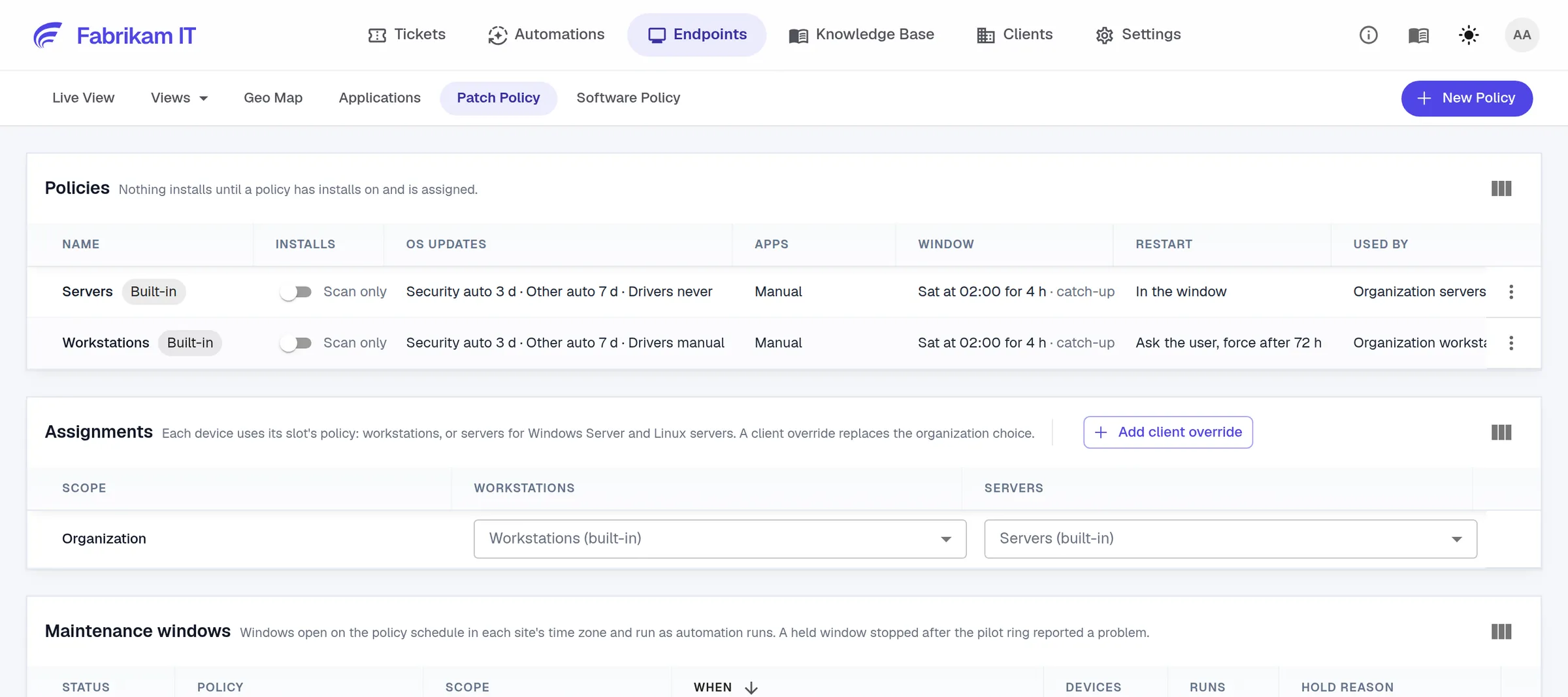
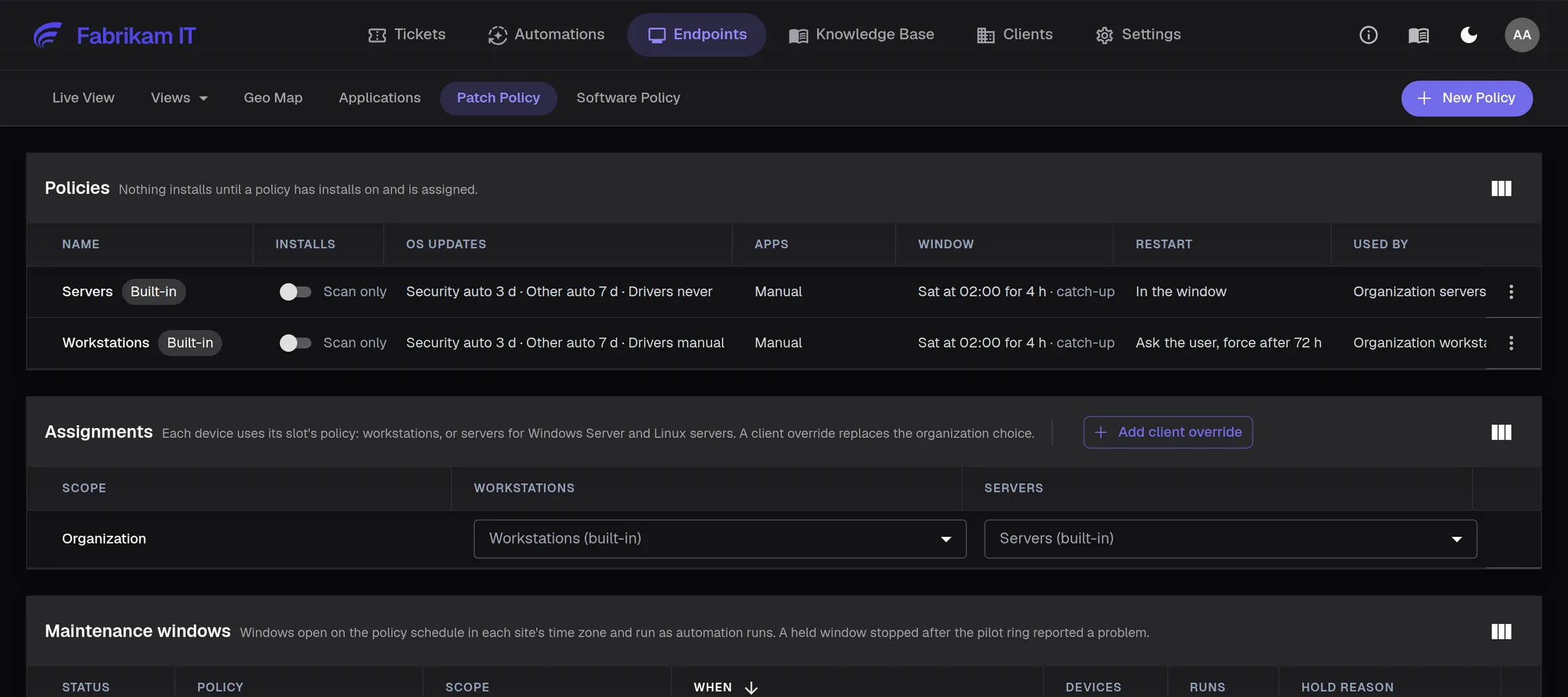
Write it once for your MSP and change it per client only where that client differs. NetZen keeps it as one policy for workstations and one for servers, inherited by every client, site and device.
- What installs, and after how long
For each type of update: automatic, manual or never, with a delay for each.
- Pilot devices for every client
Two or three machines that look like the rest of that client’s fleet and install first.
- A window per site
In the site’s own time zone, outside its working hours, with downloads before it starts.
- A restart rule
Restart in the window, ask the user with a deadline, or leave it to them.
- Freeze dates
A client’s busy season, when nothing installs automatically.
- Who hears about failures
With NetZen, one ticket per client and update, with the AI’s findings and the proposed next step.
How do you get users to restart after patching?
When a device needs a restart, its user is told in Teams, Slack, Google Chat or NetZen chat when it will happen. If they have not restarted by then, NetZen restarts it inside your window, after a 15-minute warning.
One message, where they work. A chat message from your MSP with a time on it, not a pop-up they dismiss. Users who are not on chat get it by email.
Not at a bad moment. No restart during an update freeze, while an install is running, or for a client where you switched restarts off.
How do you prove patch compliance to clients?
Every client’s patch status is one view: devices up to date, updates waiting, failed and held.
Failed and held, with reasons. A failed update shows what the AI found. A held one shows which pilot stopped it and who released it.
Checked, not assumed. Follow-up scans check every reported install and show which updates are still unresolved.
Your monitoring system too. A third-party monitoring system can read the same status, request an install and get the confirmed result through the API.
What the AI will not do
The AI investigates and proposes. Your policy and your approvers decide.
Install outside your policy. Nothing installs that your policy does not allow, and a held update stays held until a person releases it.
Fix without approval. Every fix waits for the approver you set for it.
Upgrade the operating system. Feature upgrades and new major macOS versions are reported, never installed.
Change devices WSUS manages. They are shown, not touched.
Keep Mac passwords. NetZen stores no user password; Apple silicon updates that need one go to the user.
Restart during a freeze. Dates you mark as frozen, such as a client’s busy season, get no automatic installs or restarts.
Start with one client
Start with one client and your normal approval path.
- 1Scan one client
- 2Choose pilots
- 3Set a window
- 4Read the first failure
- 5Add clients
First. See what the client is missing before anything installs. Then choose a few pilot devices and let security updates install in your window.
What to look at. The AI’s findings, the fixes it proposed and whether each one worked. When you trust what you see, add the next client.
Questions MSPs ask
Automated patching that also investigates what happened: why an update failed on a device, and whether pilot devices still work after an update. NetZen’s AI puts the cause and the proposed fix on a ticket for your approval.
Common causes include a full system drive, a restart that never happened, a broken update service, a wrong clock or a device that cannot reach the update servers. NetZen’s AI checks which of these the evidence on the device supports, and says so when it cannot tell.
Ratings judge an update before you install it, from what others reported online. NetZen’s AI works on your own devices: why this install failed here, and whether your pilots still work.
Pilot devices install first: a pilot that fails or does not come back holds the update for everyone else, and other problems the AI finds go to a technician to decide. Fixes wait for the approval you set.
Yes: on Windows for apps installed for all users, and on Mac for supported apps. Apps it cannot update safely are listed, so you can update them with your own script.
Yes. Macs get Apple updates and supported apps, Linux gets its distribution’s packages, and the AI investigates failures on all three.
Yes. Through the API it can see what a device is missing, request the install and read the confirmed result.
Patching and the AI are included in US$100 per technician a month. Devices, clients and end users are not billed, and the 30-day trial needs no card.
From an MSP using NetZen
“What impressed me was NetZen's ability to integrate the AI into the ticketing, have it triage the request and help diagnose the machines.”
Matt Kerekes, CEO, Cinema Hero Solutions
Read the customer story →See it with your team
Book a technical demo →Start with one client in scan-only mode and a few pilot devices. Nothing installs until you turn it on.