Remote Connect
Remote access software for IT support, with AI
Connect to any Windows, Mac or Linux device the agent manages, attended or unattended. The AI has already checked the device and written up what it found, so your technician starts from the evidence. You choose who may connect and what each session allows.
Remote desktop for Windows, Mac and Linux
View and control any Windows, Mac or Linux computer the NetZen agent manages, from the device list or the device page. Several technicians can join the same session, each with their own access.
A sleeping computer is woken first, so nobody has to be at the desk.
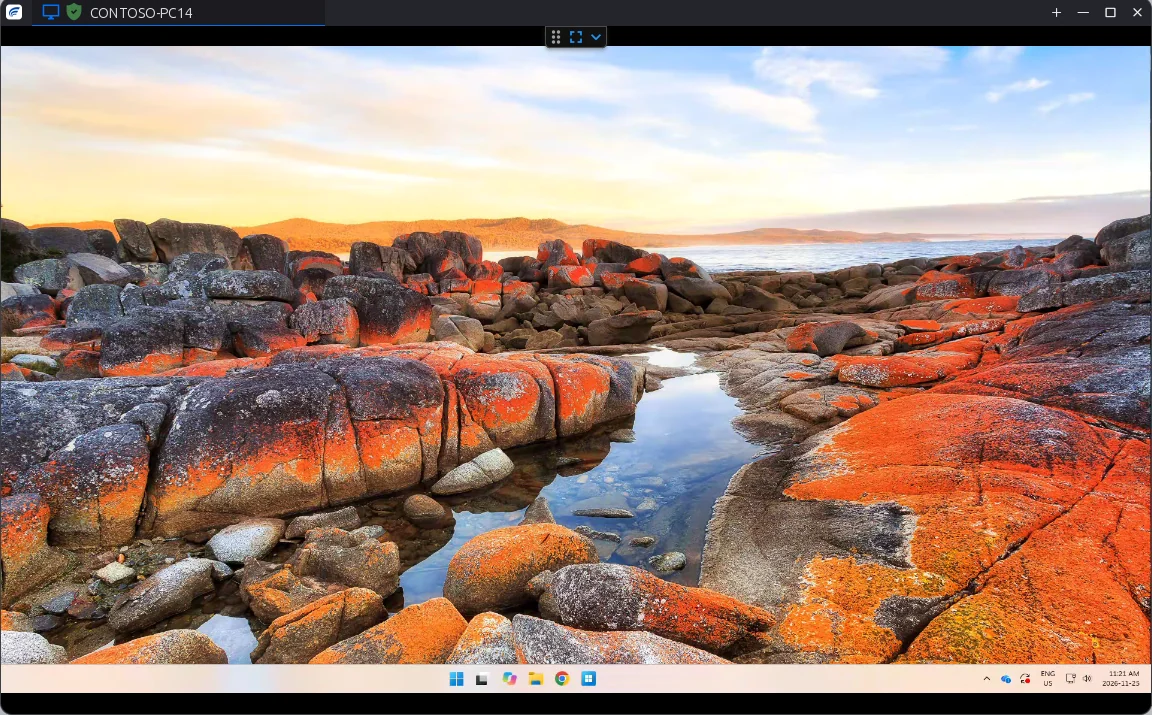
Remote IT support with the AI’s findings
Before anyone connects, the AI has asked the user what happened and checked the device: services, events, disk and network. Its findings are on the ticket when your technician opens the session.
Beside the screen, your technician has a live PowerShell or Bash terminal, processes and services, so many fixes need no screen at all.
Secure remote access
Each technician gets their own password for each session, and it works only in the viewer that first used it, so a shared password lets no one else in. Sessions end after 60 minutes.
Sessions run through your organization’s own relay server, and the agent only connects outward. A role permission decides who may connect, and session recording can be turned on.
Attended or unattended access
Connect unattended to servers, kiosks and shared computers, or require the person at the device to accept first.
Clipboard, file transfer, audio, terminal, remote restart and session recording stay off until you turn them on, so each session allows only what you chose.
Part of the platform, not another tool
Remote access sits beside the service desk, RMM, patching and automation, under the same roles and the same record. There is no separate remote access product to buy, install or keep in step.
One agent on each device covers monitoring, patching, the AI’s checks and remote sessions.
For MSPs and internal IT
MSPs connect to every client’s devices, and roles decide who may connect at each client.
Internal IT teams connect to employees’ laptops and the company’s servers from the same help desk.
Safety and security
Only the people you allow can connect, and each session allows only what you chose.
Only people you allow
A role permission decides who may connect, in your team or at each client.
Access for one person
Each technician gets their own access for each session, so a shared link lets no one else in.
Ask first, if you prefer
Require the person at the device to accept before anyone connects.
Recorded when you need it
Turn on session recording to keep a record of what happened on the screen.
Questions about remote support
Yes. Windows, macOS and Linux devices with the NetZen agent can be viewed and controlled. A Mac user allows screen recording and accessibility once, and Linux needs someone signed in to a desktop session.
Yes, unless you choose to ask the user first. Unattended access suits servers, kiosks and shared computers.
Yes. Session recording is one of the session permissions; it is off until you turn it on.
No. The agent connects outward. Your network allows the outbound addresses and ports NetZen lists for Remote Connect.
Yes. Each technician who connects gets their own password, and the others stay connected.
Yes. Remote Connect is part of the US$100 per technician monthly subscription, and devices are not counted.